Setting up Godot (v4.6.1)

Setting up Godot (v4.6.1)


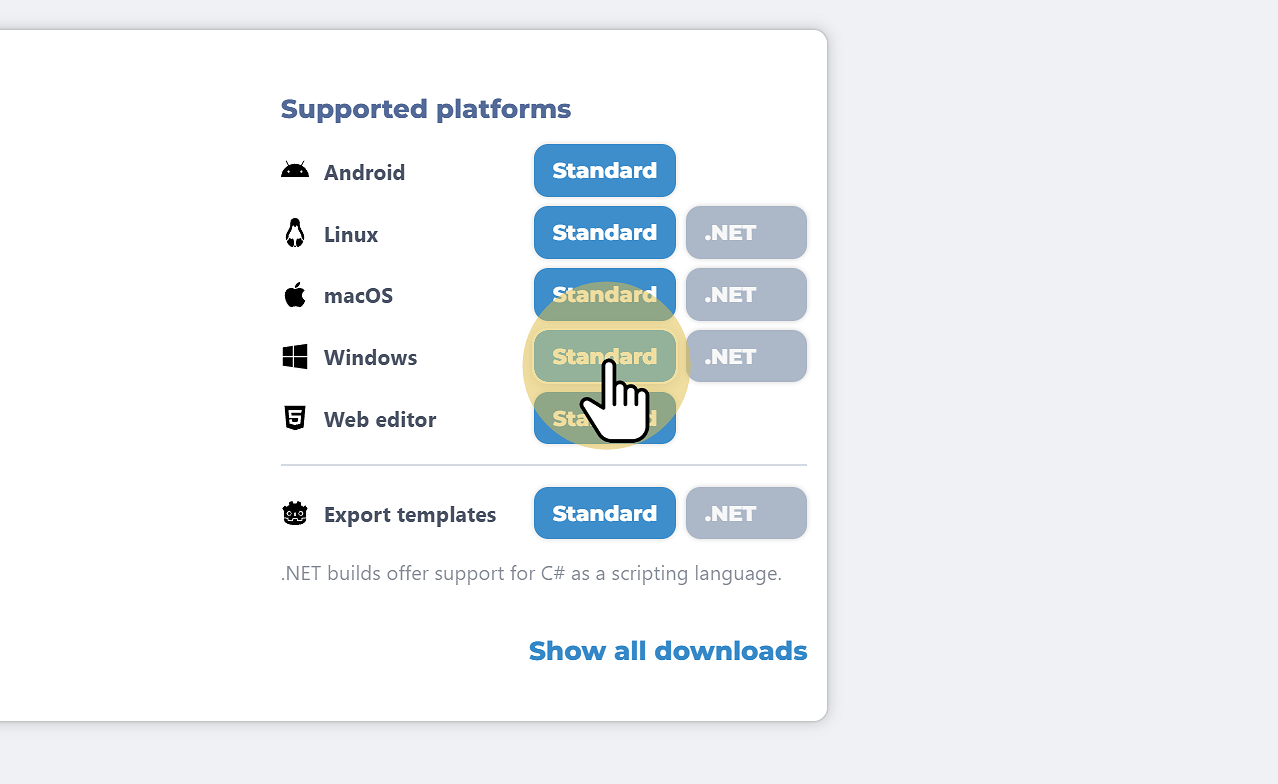
1. Go to godotengine.org and click previous versions

Go to godotengine.org and click previous versions

2. Click 4.6.1-stable Download
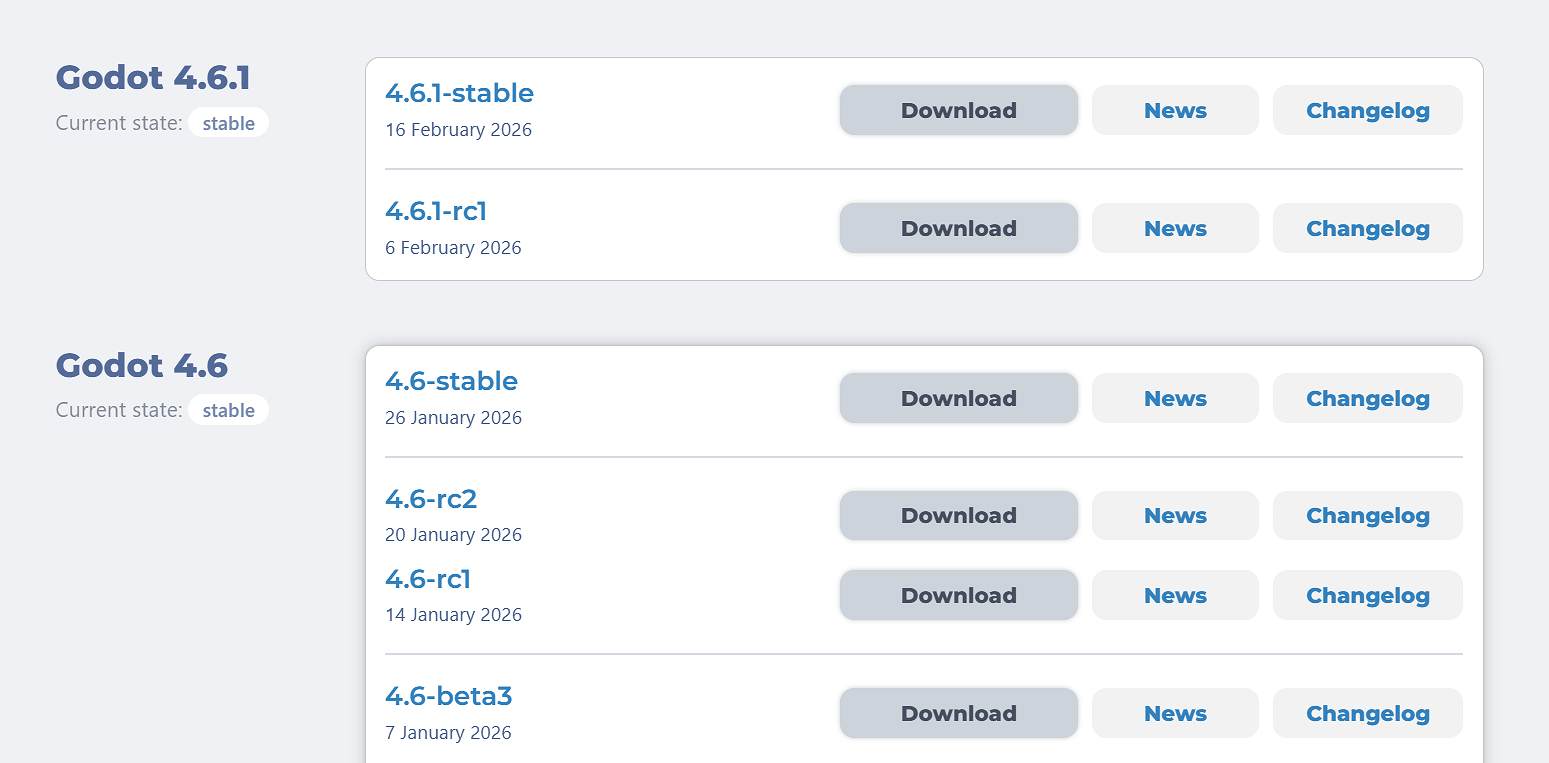
Click 4.6.1-stable Download

3. Click the correct operating system

Click the correct operating system

4. Go to your Downloads and copy the Godot executable file
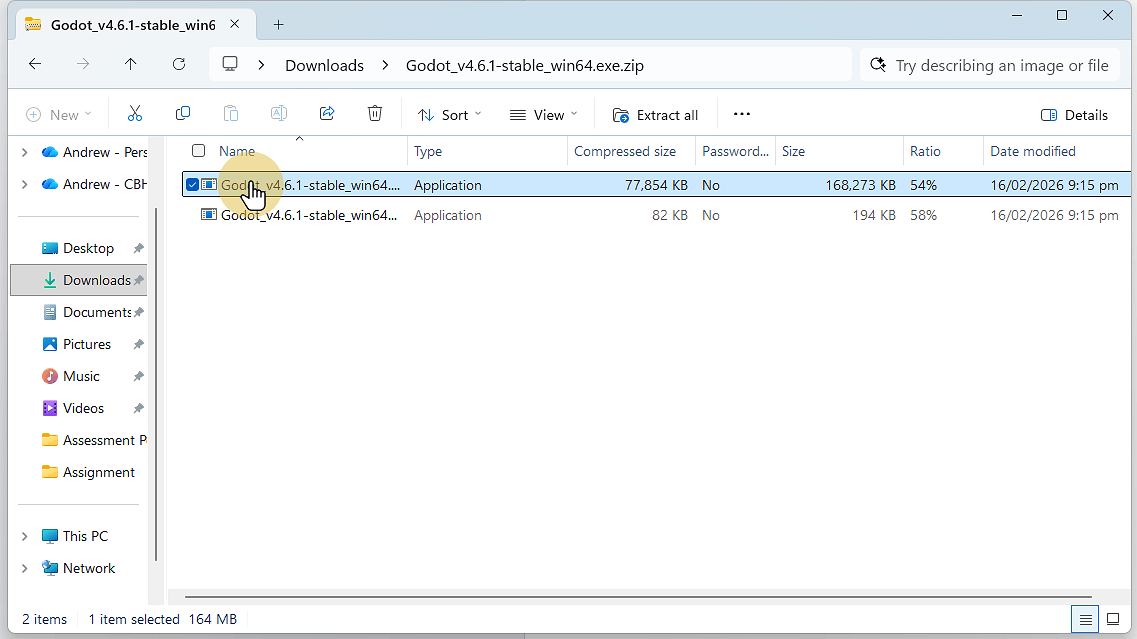
Go to your Downloads and copy the Godot executable file

5. Save / Paste the file where you want to save it
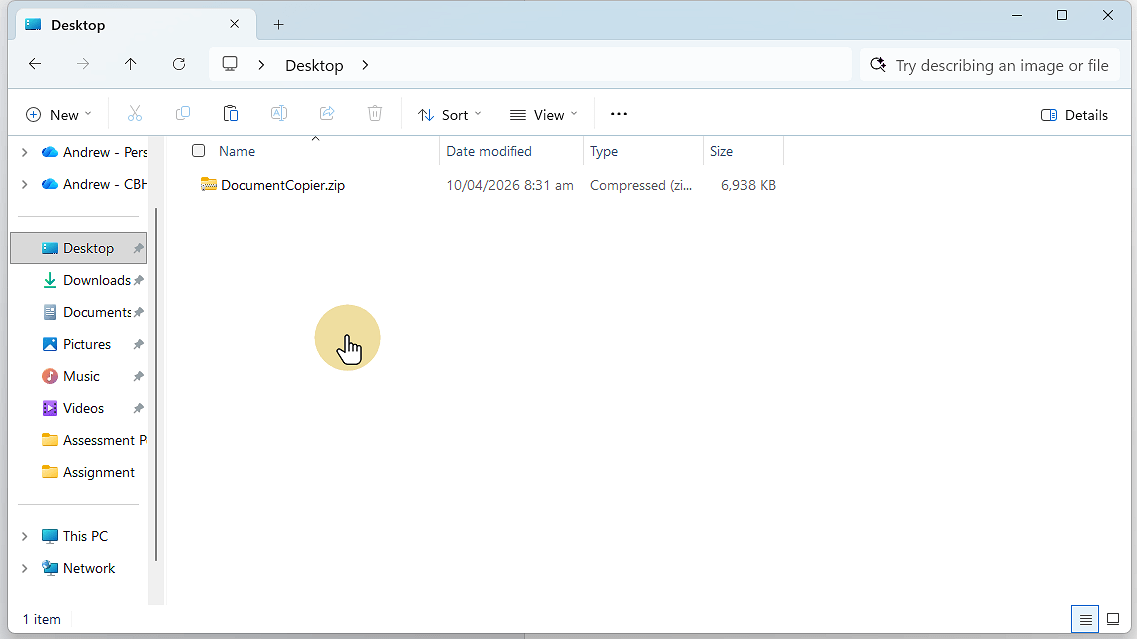
Save / Paste the file where you want to save it

6. Double click the file to run Godot
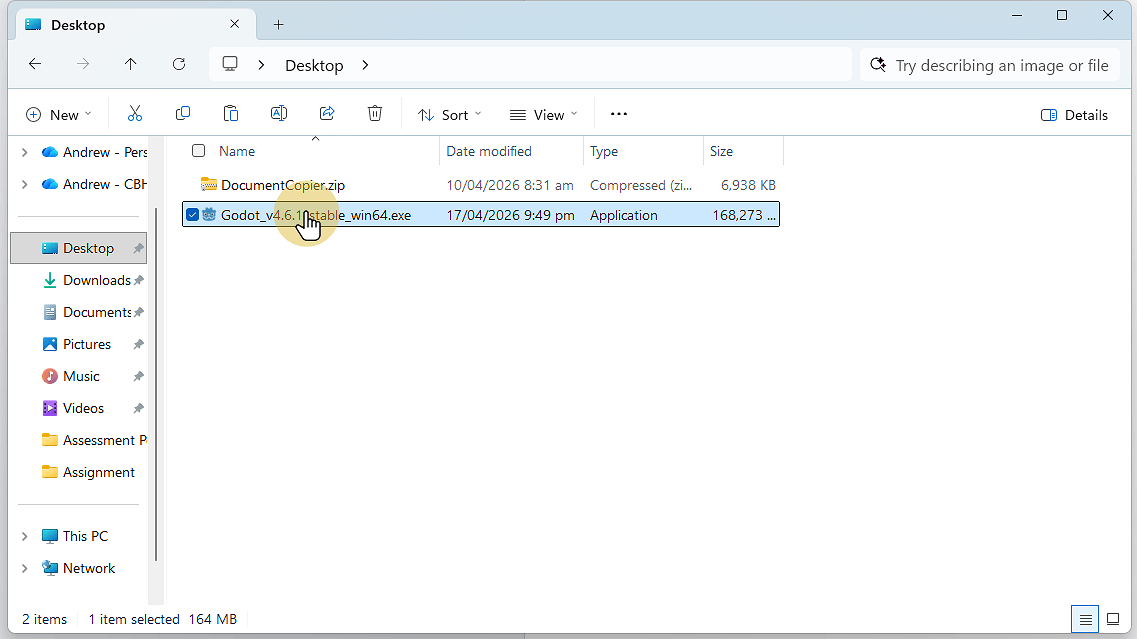
Double click the file to run Godot

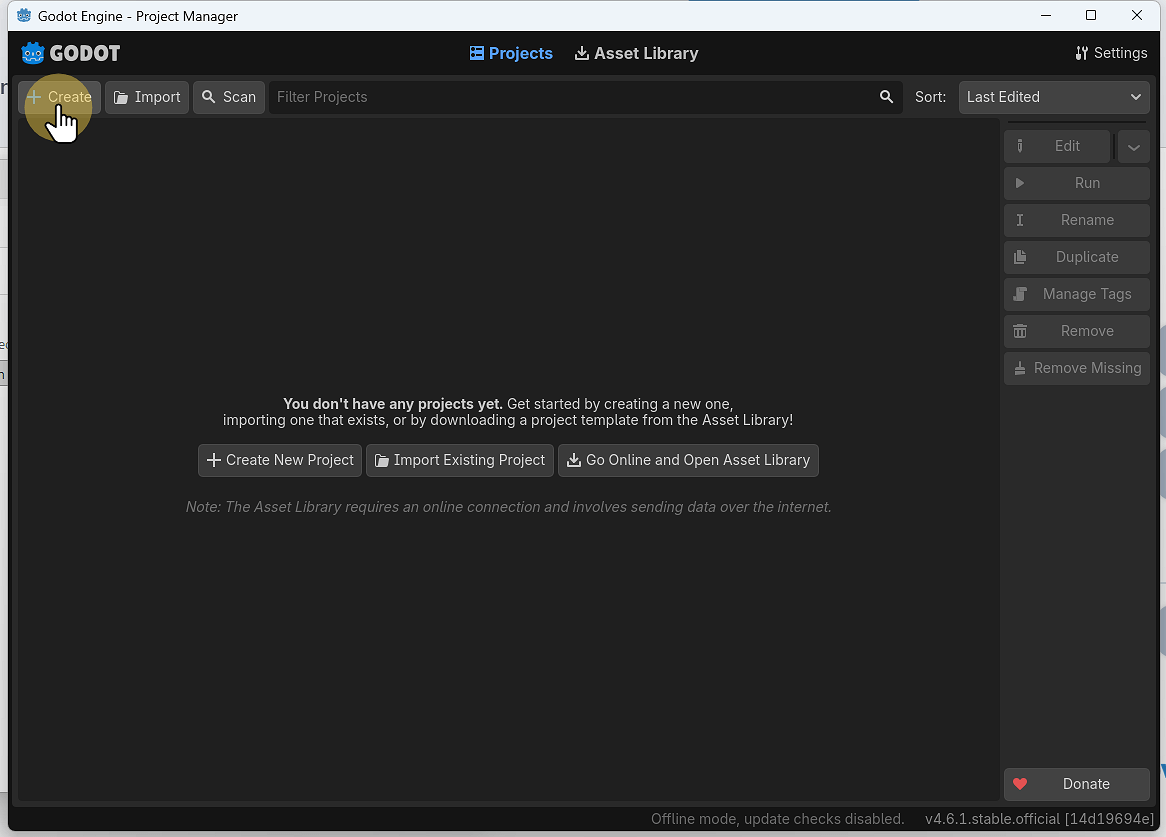
7. Click Create to create a new project

Click Create to create a new project

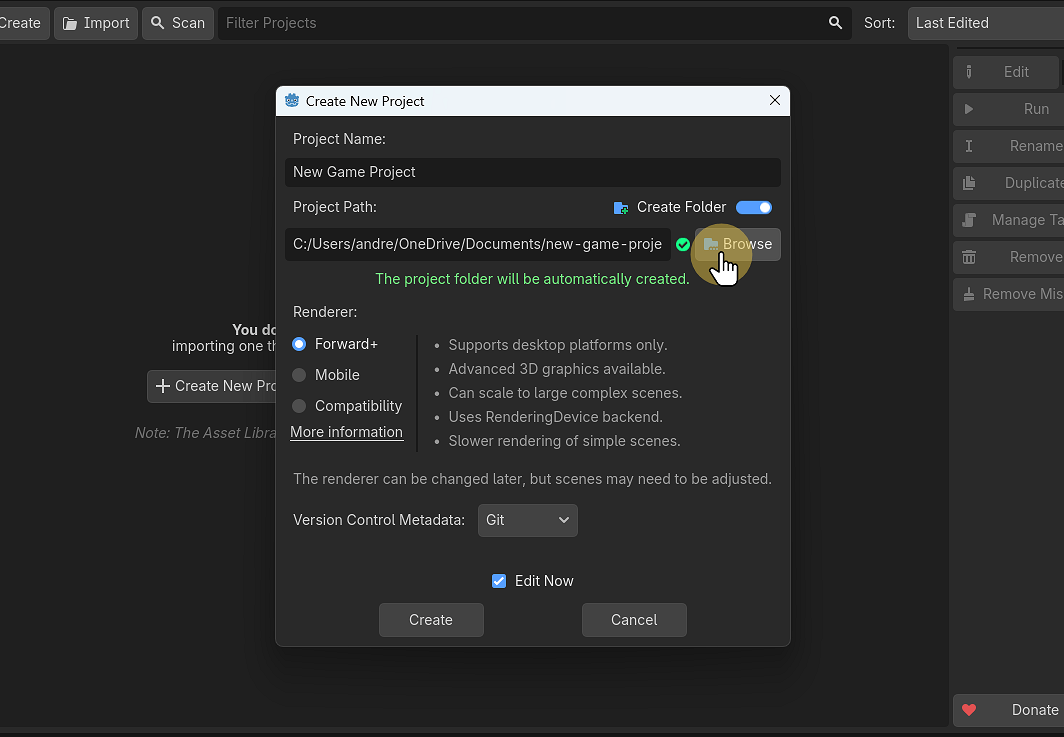
8. If using Github DO NOT Save in your OneDrive folder
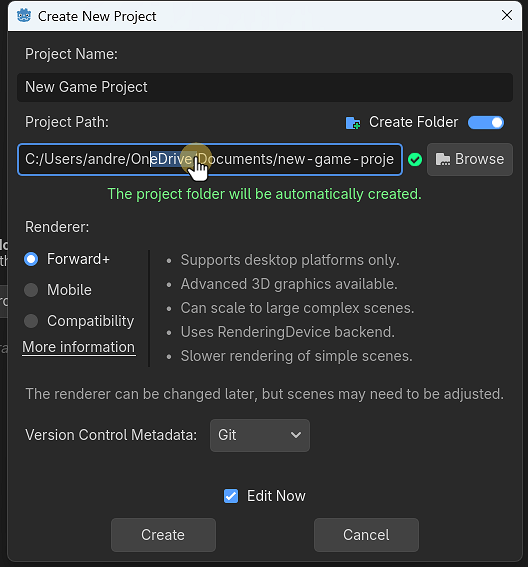
If using Github DO NOT Save in your OneDrive folder

9. Brose to choose a location to save your project

Brose to choose a location to save your project

10. Press the up arrow to get to the Users/username folder, make sure that OneDrive is not in the folder name
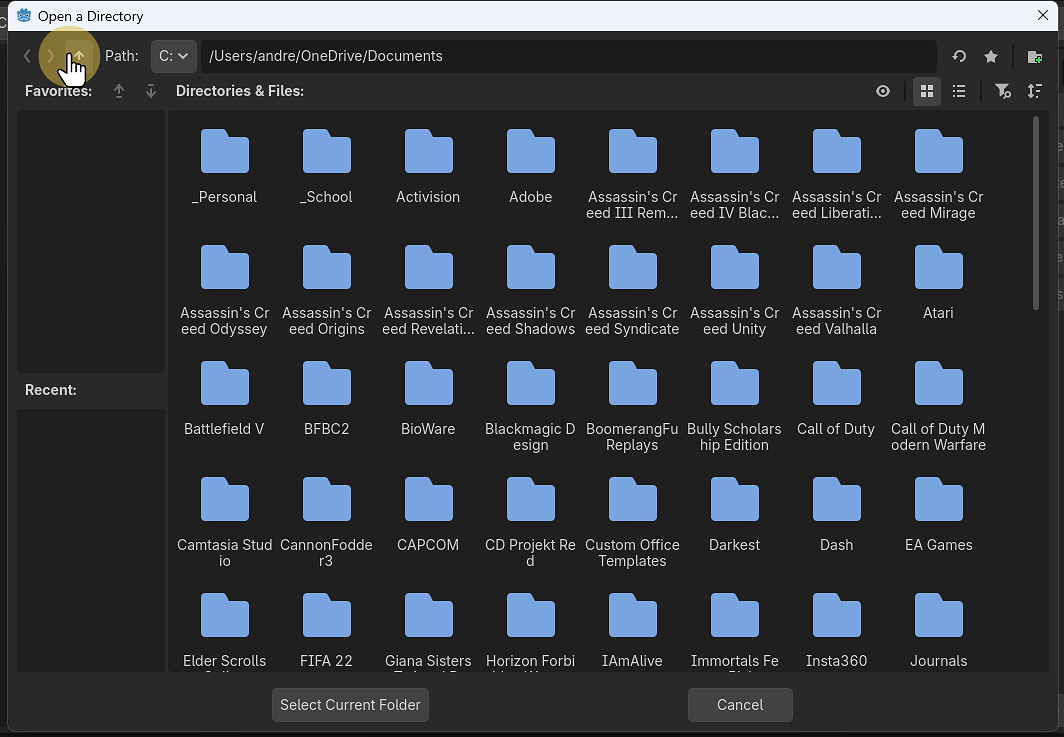
Press the up arrow to get to the Users/username folder, make sure that OneDrive is not in the folder name

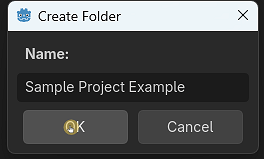
11. Use the create folder icon in the top left to make a folder for your project

Use the create folder icon in the top left to make a folder for your project

12. Click “Godot Engine”

Click "Godot Engine"

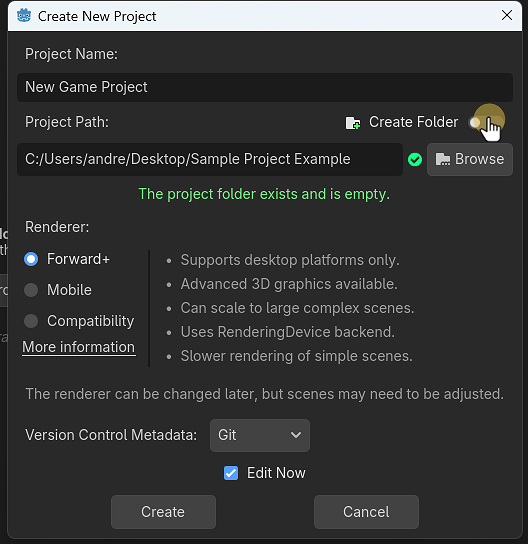
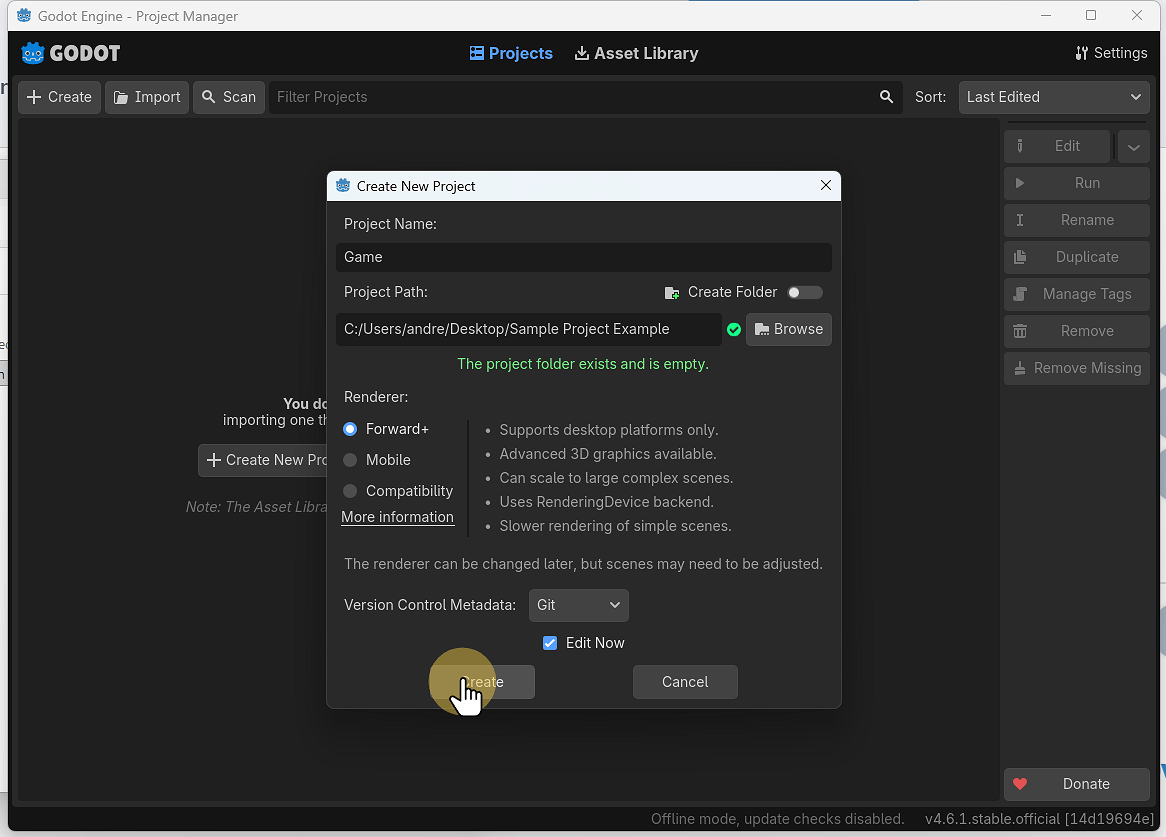
13. Name the project and click Create

Name the project and click Create

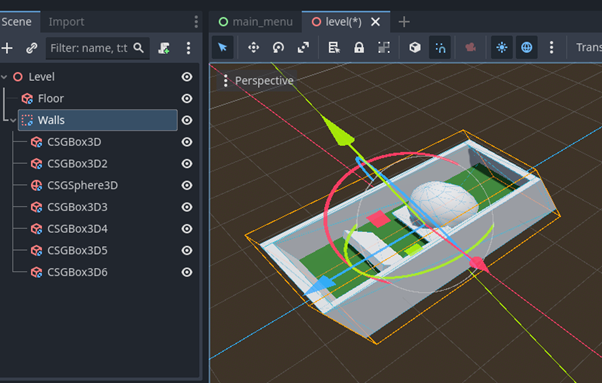
14. You now haver a Godot project

We will set up exporting the game
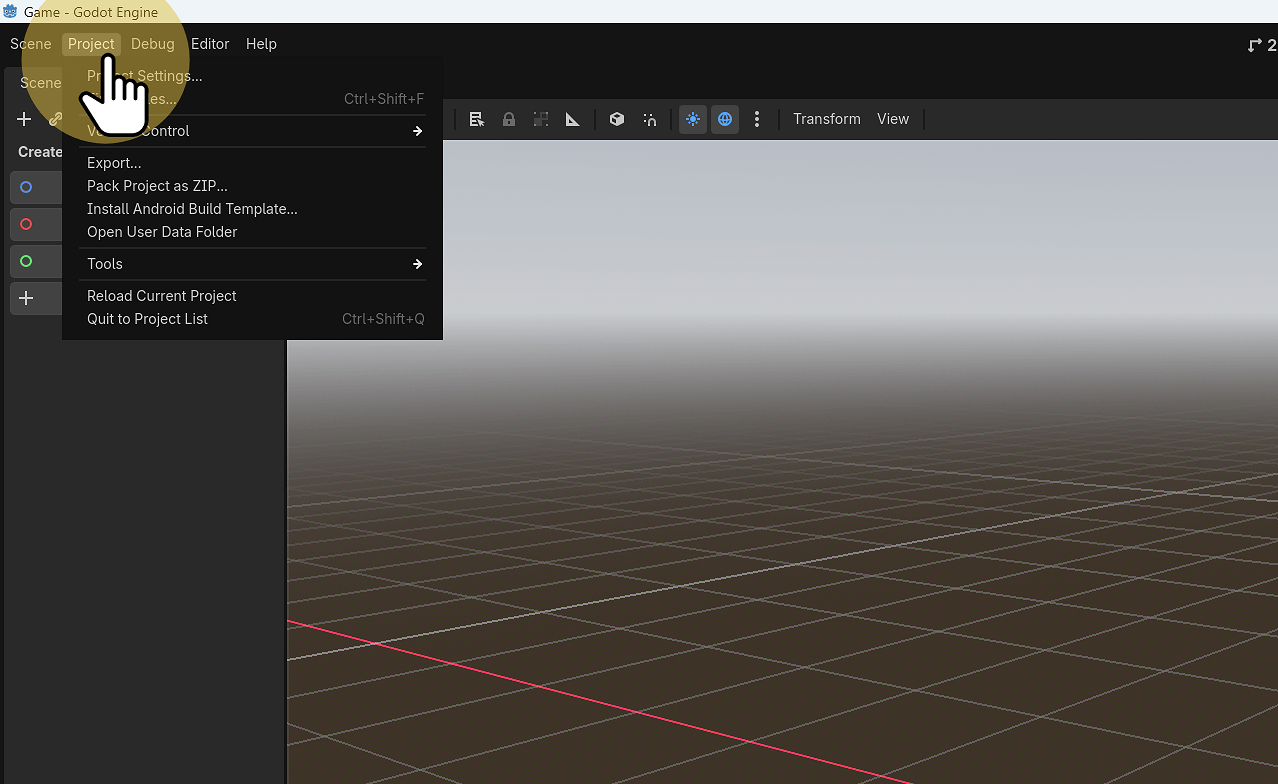
You now haver a Godot project

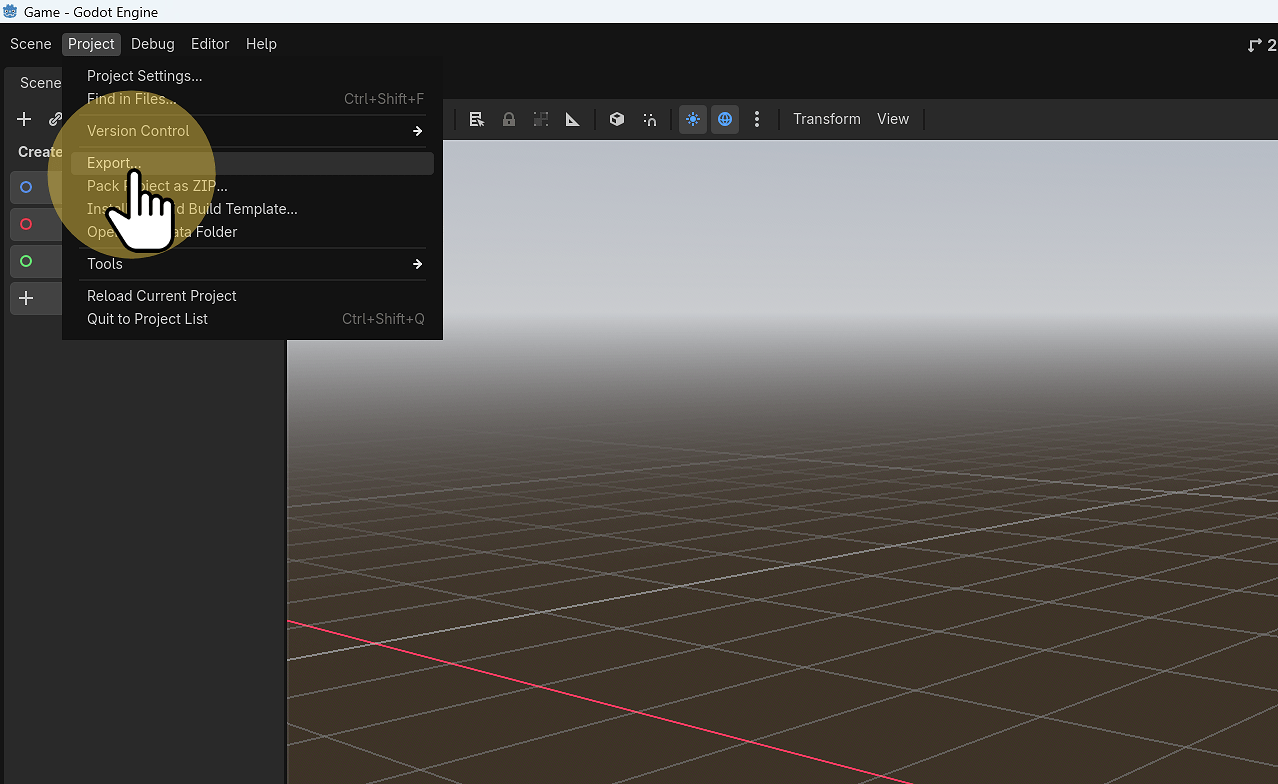
15. Click Project > Export

Click Project > Export

16. Select Add… Windows Desktop
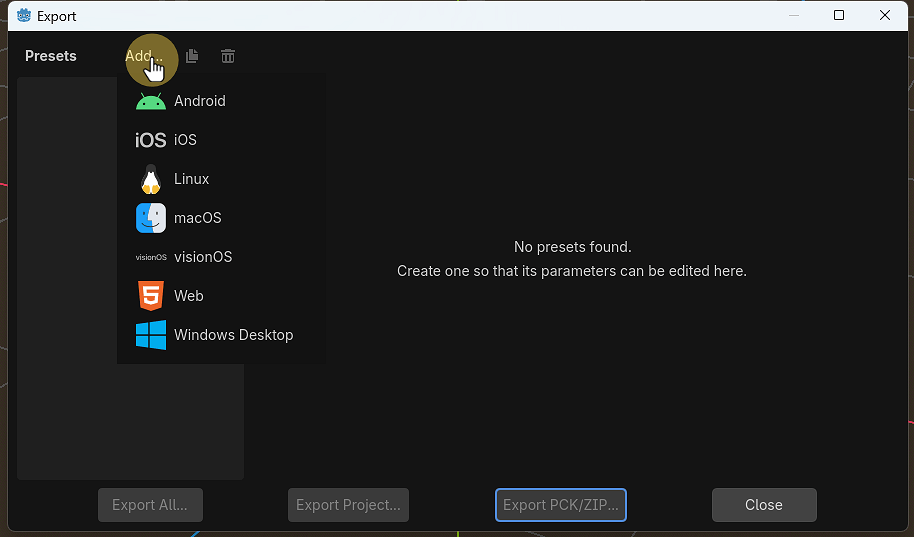
Select Add... Windows Desktop

17. Click Manage Export Templates
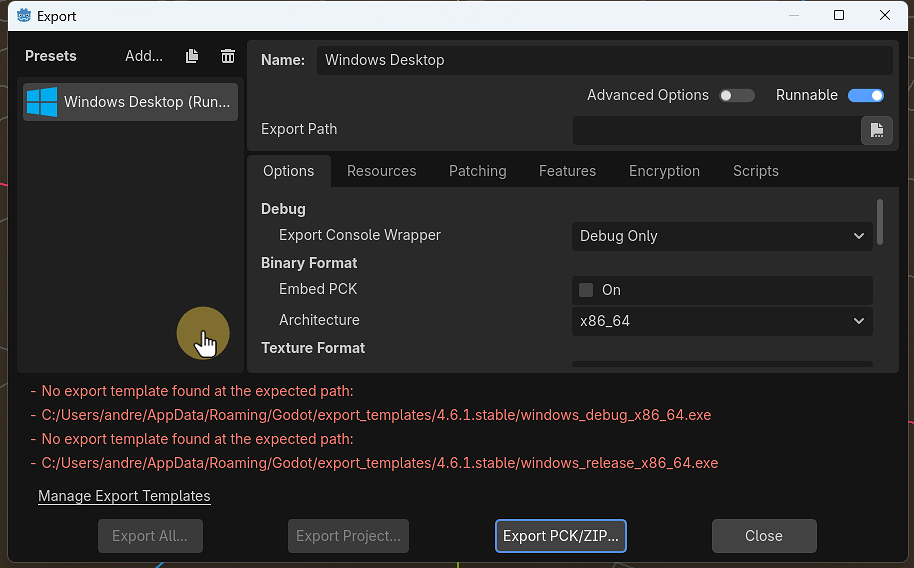
Click Manage Export Templates

18. Make sure you are online and then click Download and Install
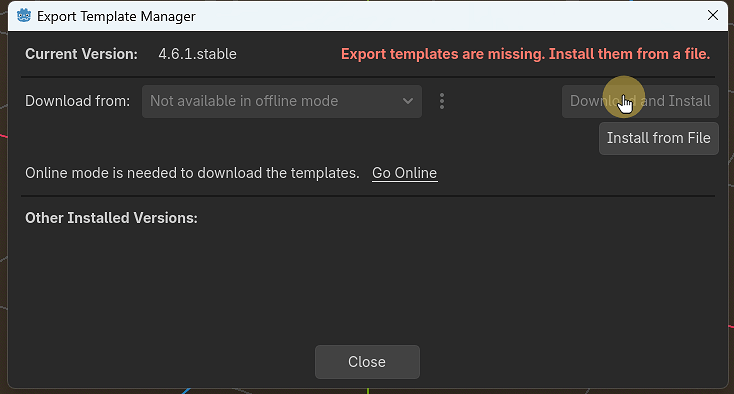
Make suer you are online and then click Download and Install

19. This might take a while and appear to have crashed, be patient.
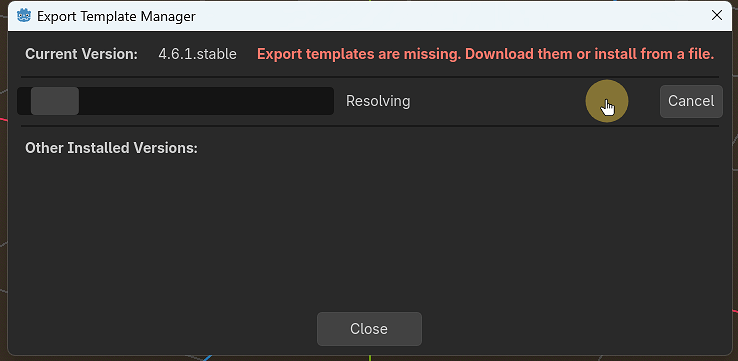
This might take a while and appear to have crash, be patient.

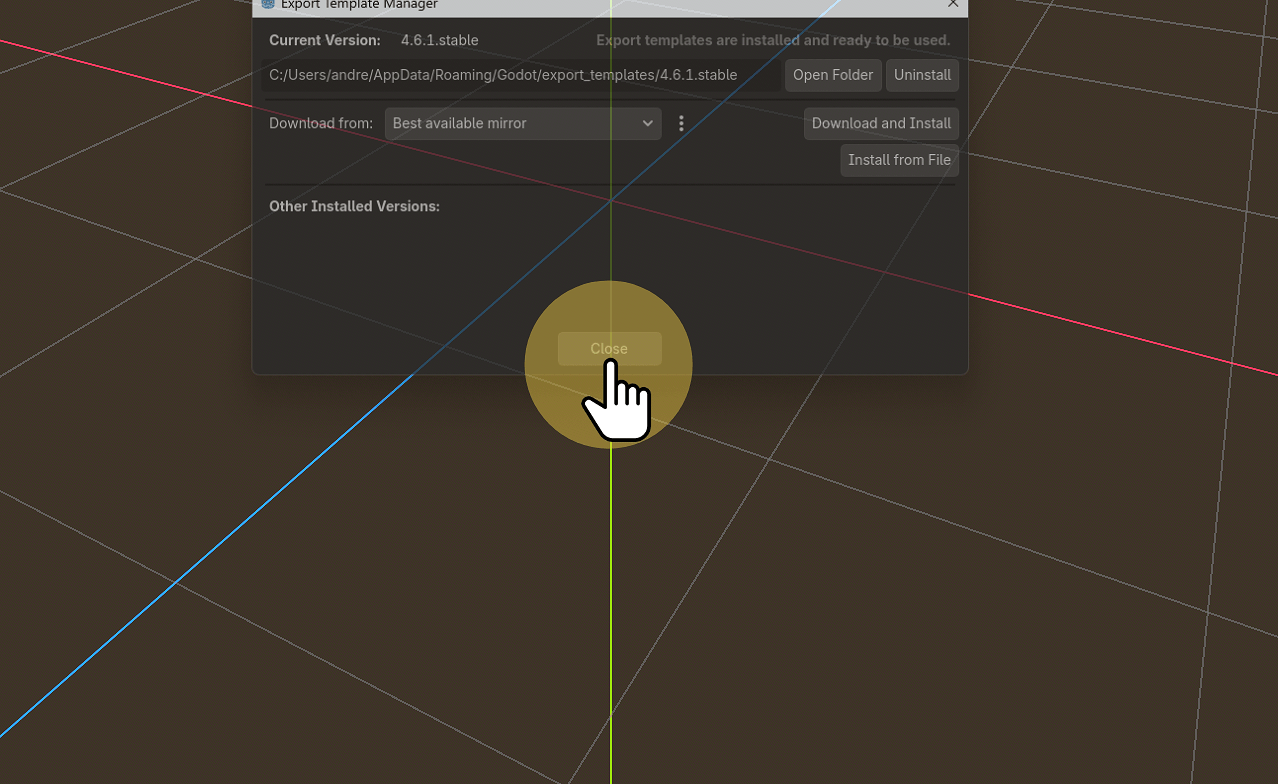
20. The export template for building you game or project has been installed.

The export template for building you game or project has been installed.

Leave a Reply

No comments to show.