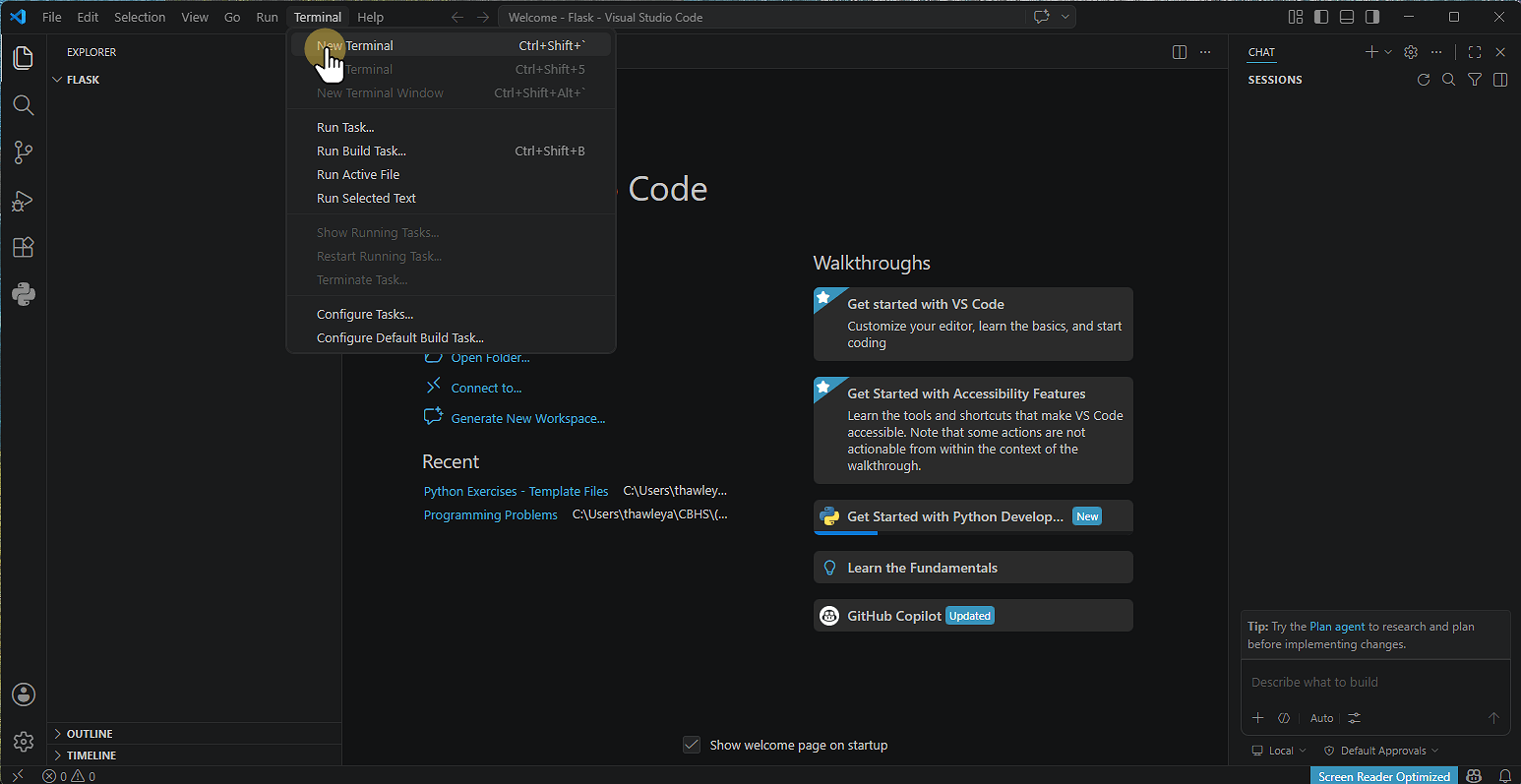
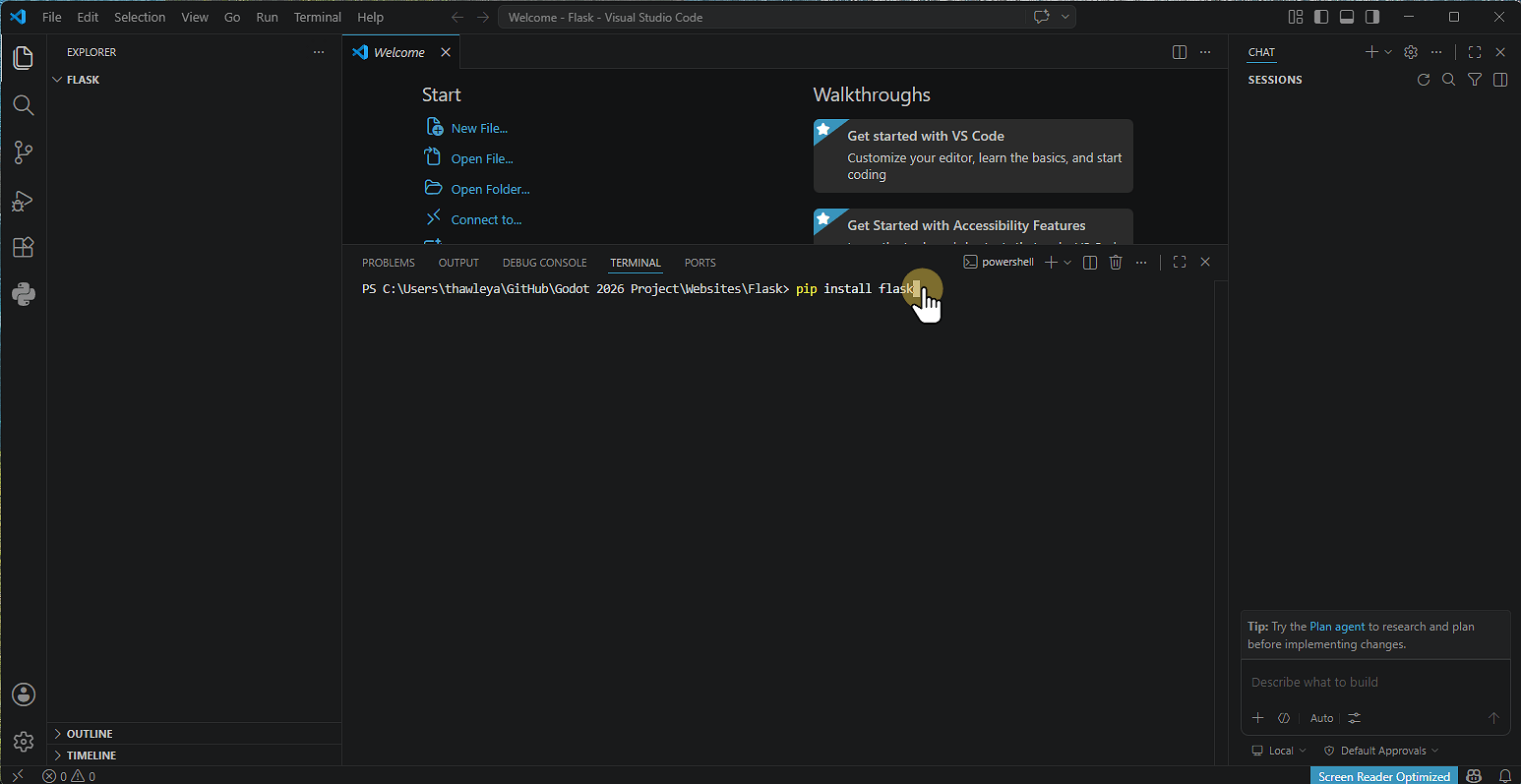
2. Type pip install flask
Click the terminal Window
Type pip install flask
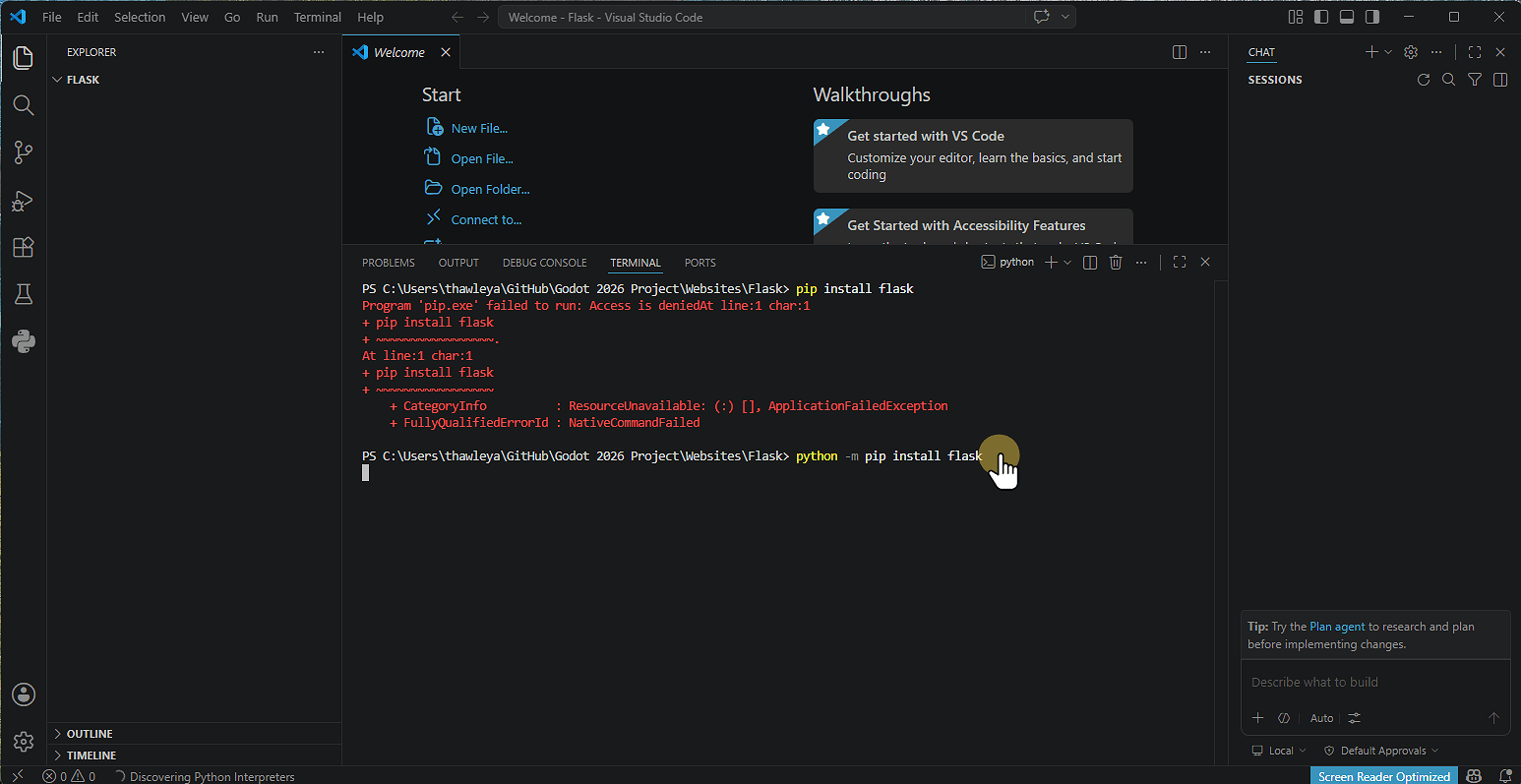
Note that on some machines you might not have access to do this.
3. Alternative Install Method
Type Python -m pip install flask
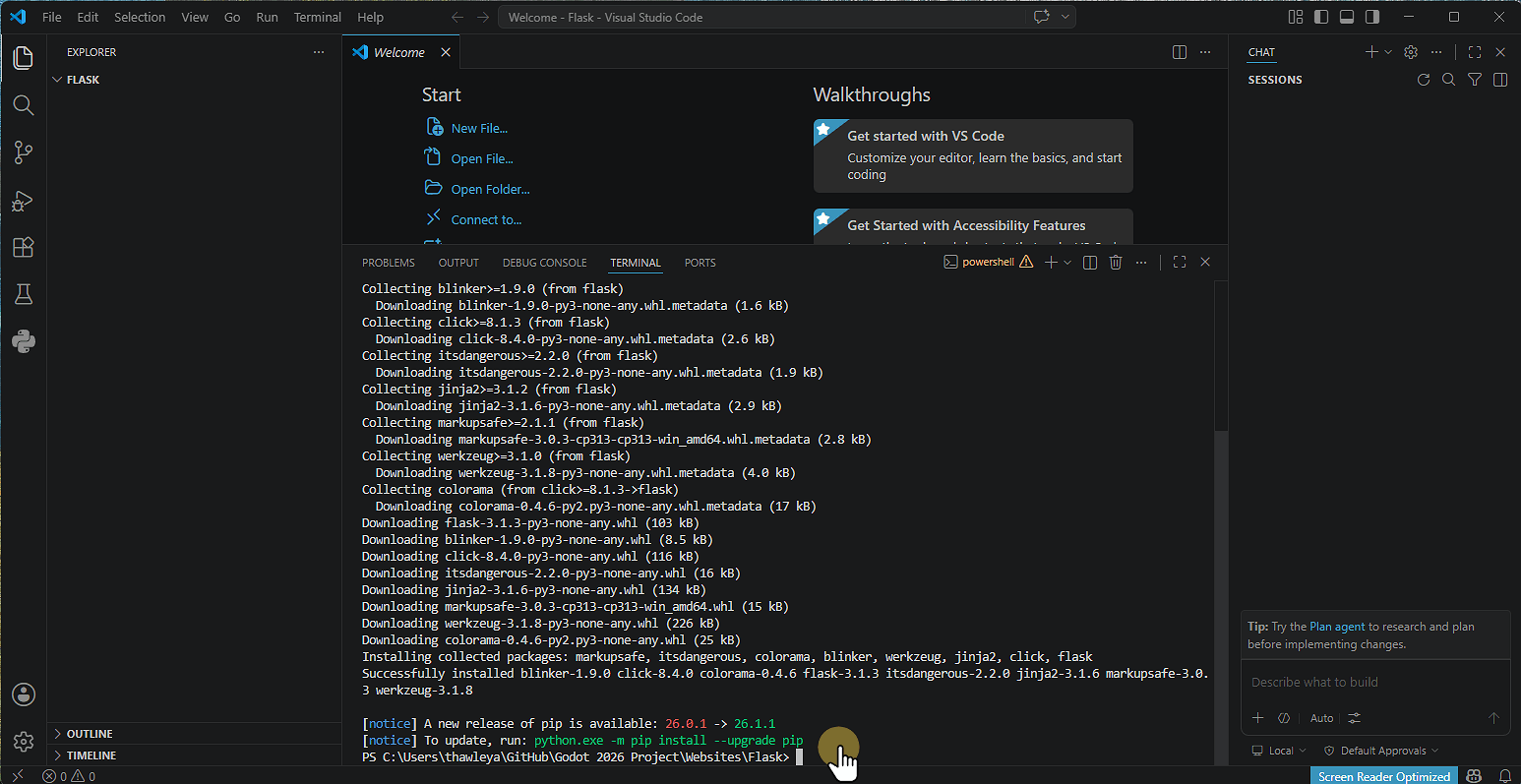
4.
Flask will then install
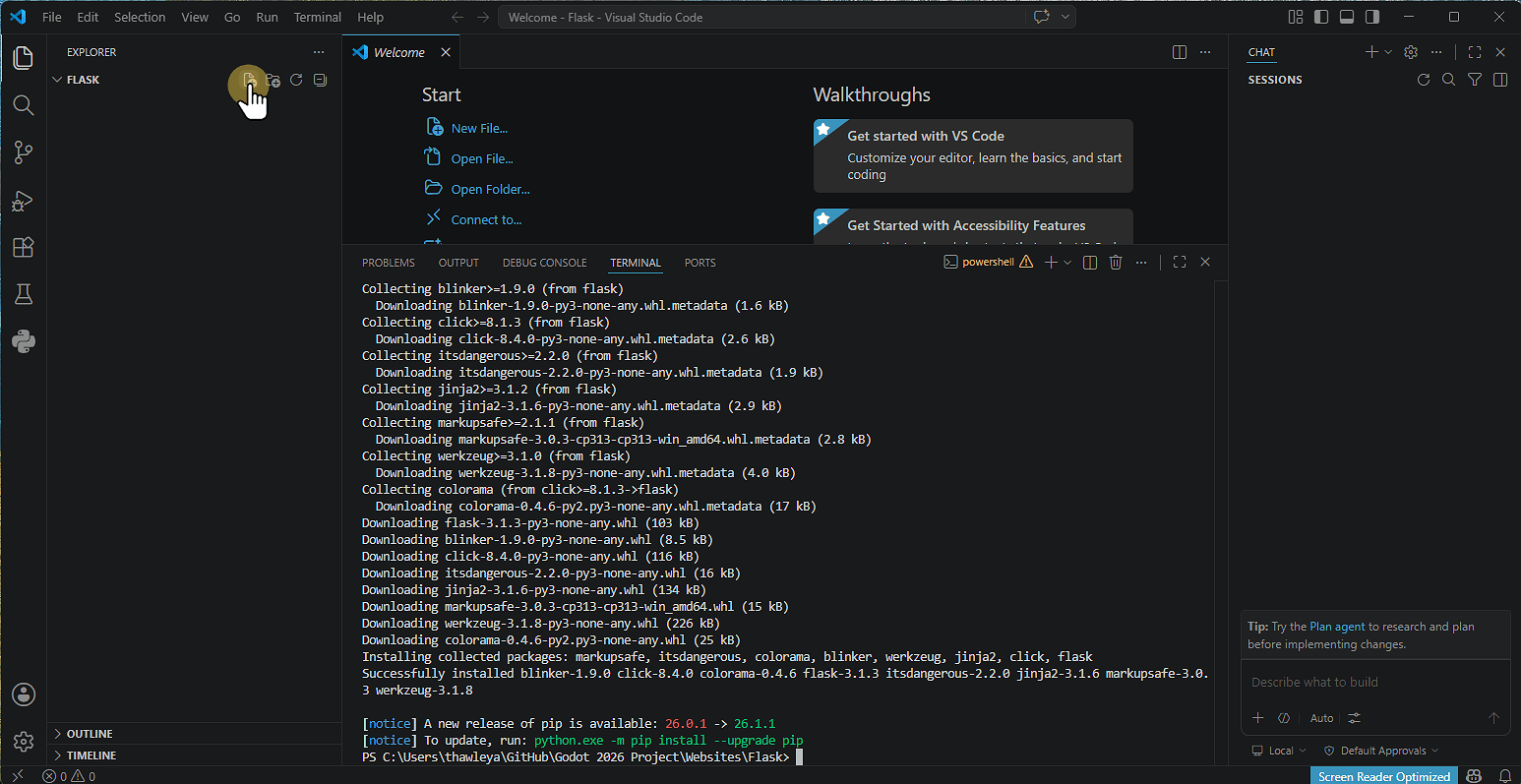
5. Creating the Application
Click New File and name it.
A filename like flask_app.py is sensible.
6.
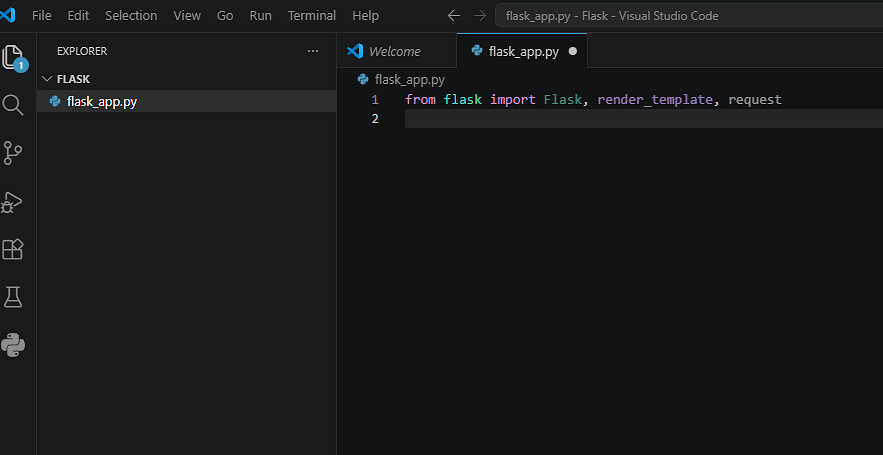
Enter the code on line 1.
This will import flask and the render template (to later display html pages).
7.
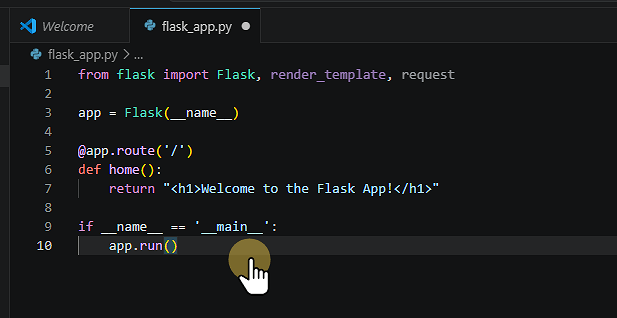
Enter the remaining code.
Line 3 creates the flask app.
Line 5 Creates a link to the app in flask. the / inside the brackets indicated the URL that will be used for this route.
A route is a way of linking pages together
Line 6 creates a Function for the route on line 5. This must be unique.
Line 7 is the code to run when this route is run. This can be more than one line.
This example prints a message using the <h1> html element.
Lines 9 and 10 check if the application name is set to main and then runs the app.
8. Running the App
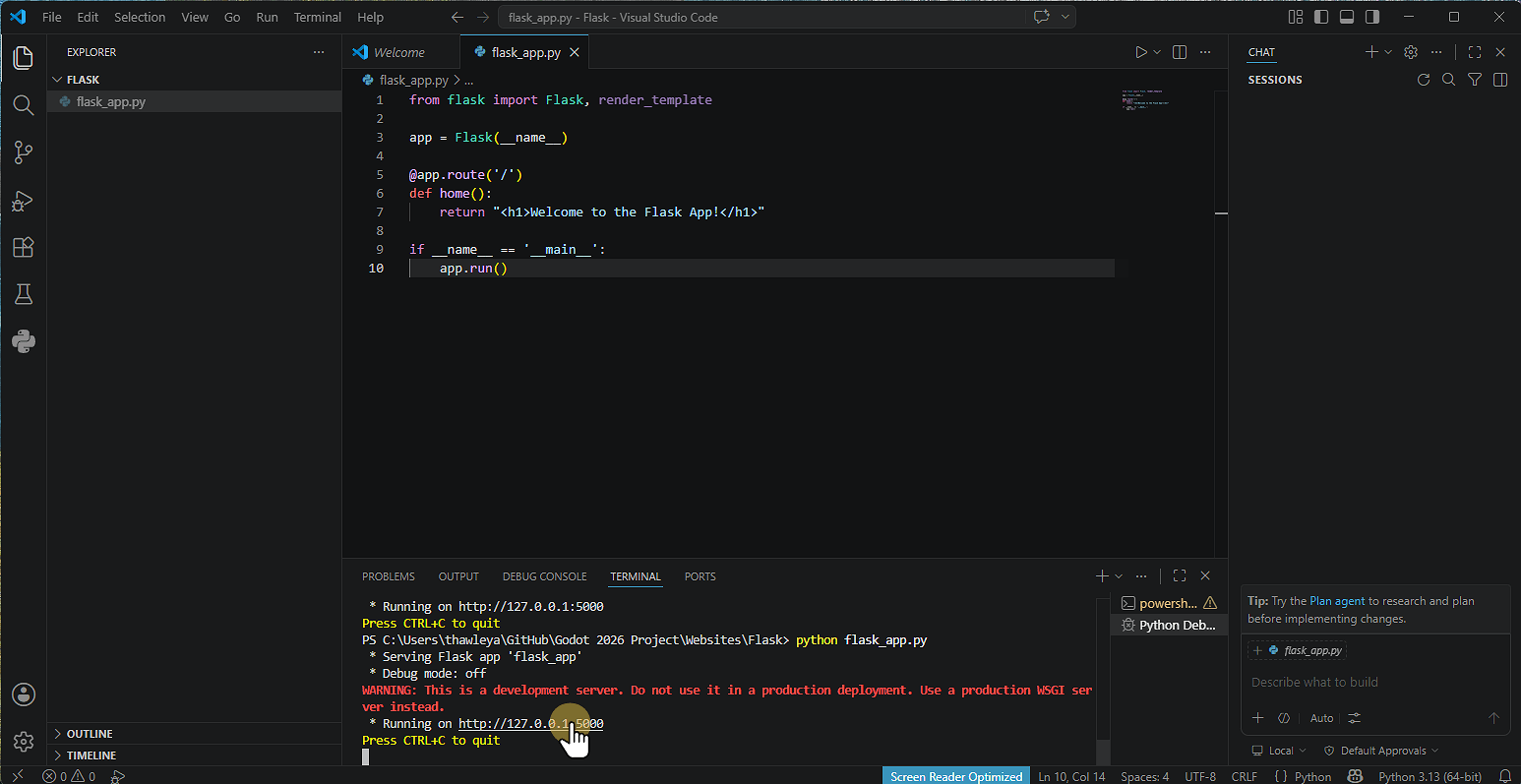
Go to the terminal and type in Python flask_app.py
Replace flask_app.py with the filename of your app.
When the app runs click on the link shown by holding Control or going to 127.0.0.1:5000 in your browser.
9.
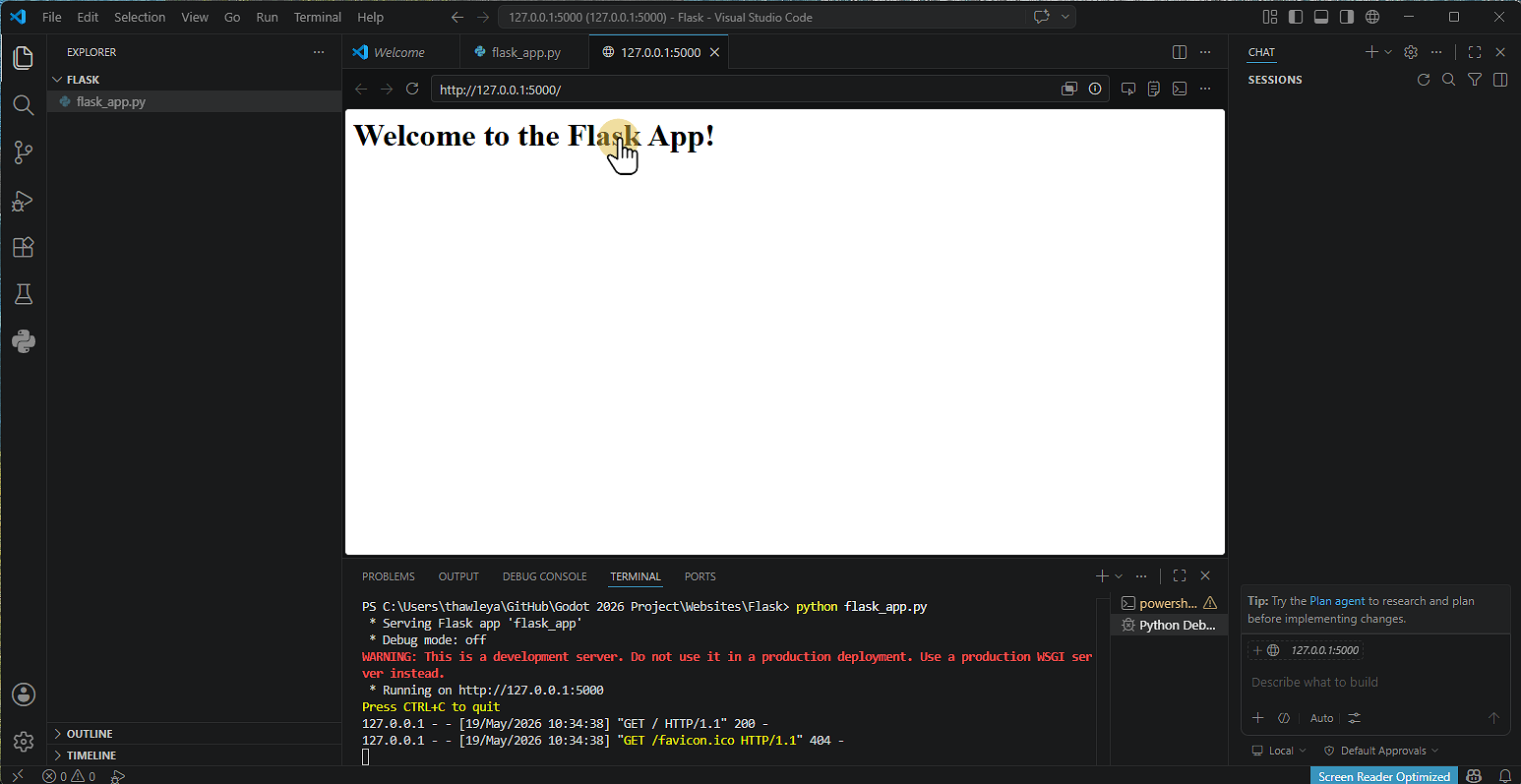
You will now see the web page displayed
10. Templates
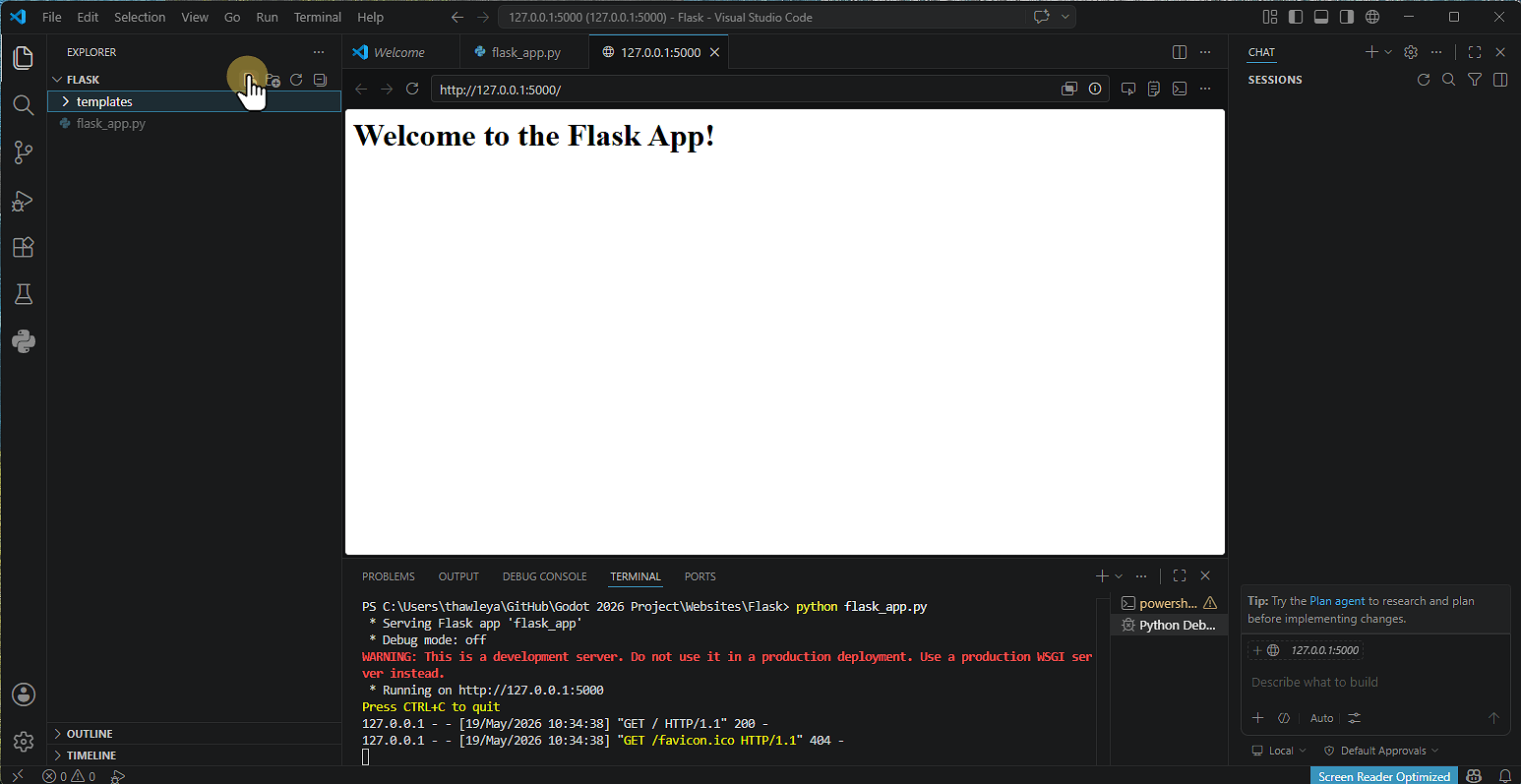
Create a folder called templates.
Inside that create a file called home.html
11.
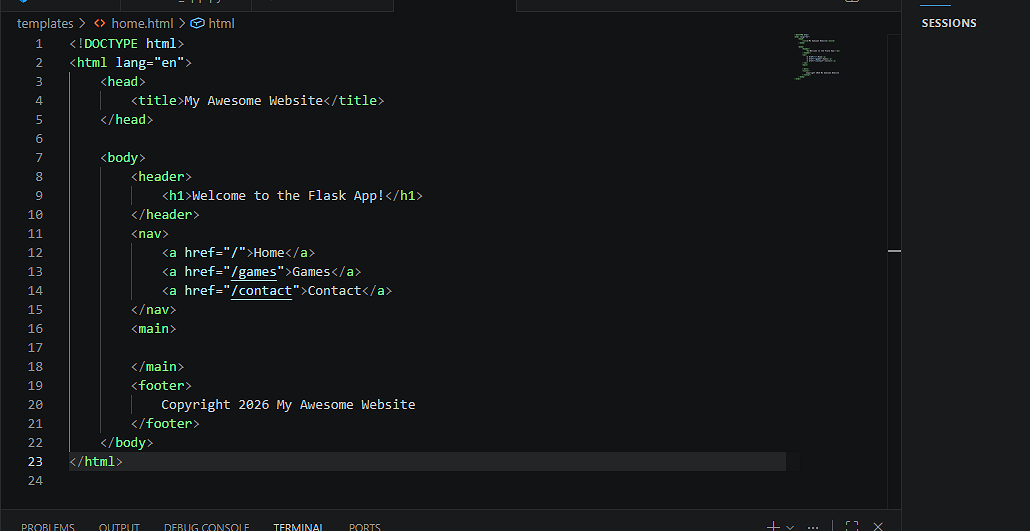
Create the html page shown and save it.
12.
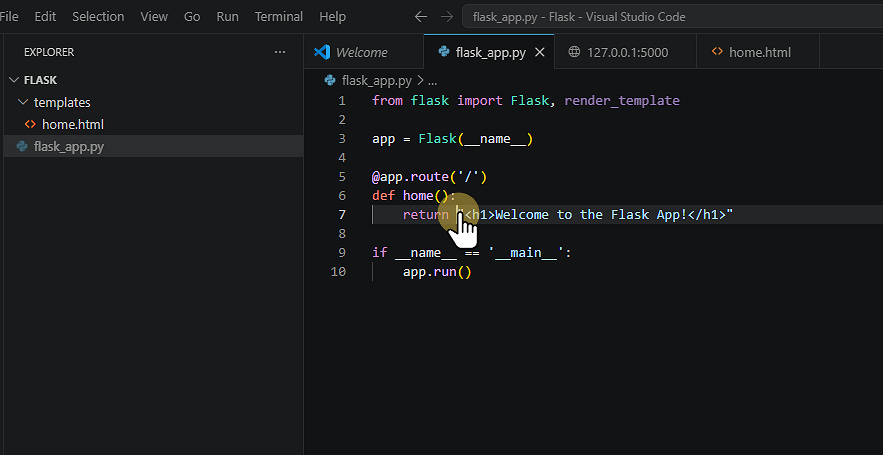
Switch to the flask_app.py file
Change line 7 to render_template(‘home.html’)
13. Click here
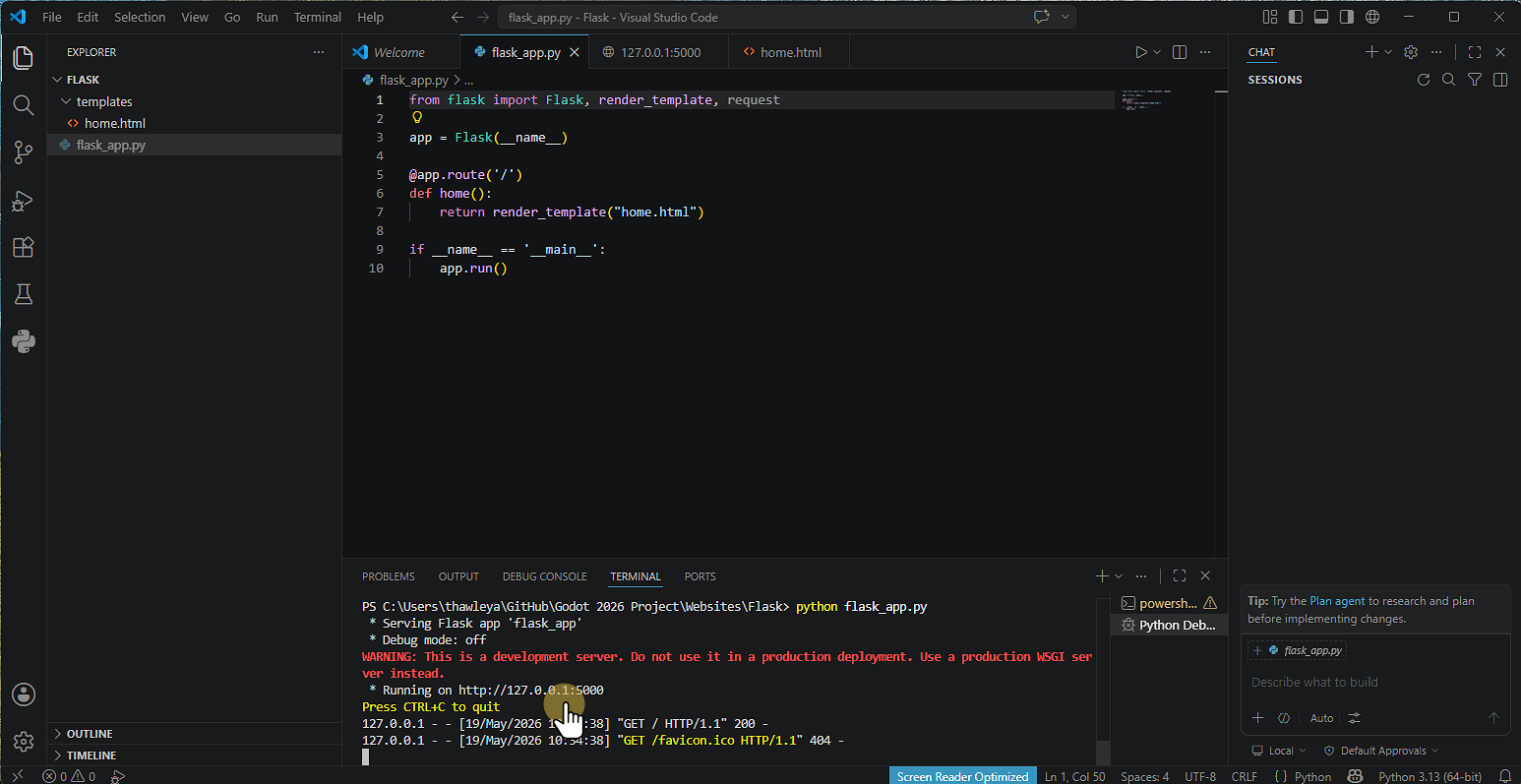
Run the flask app again by pressing Ctrl + C in the terminal to stop the server and then typing
Python flask_app.py to restart the server.
Preview the page.
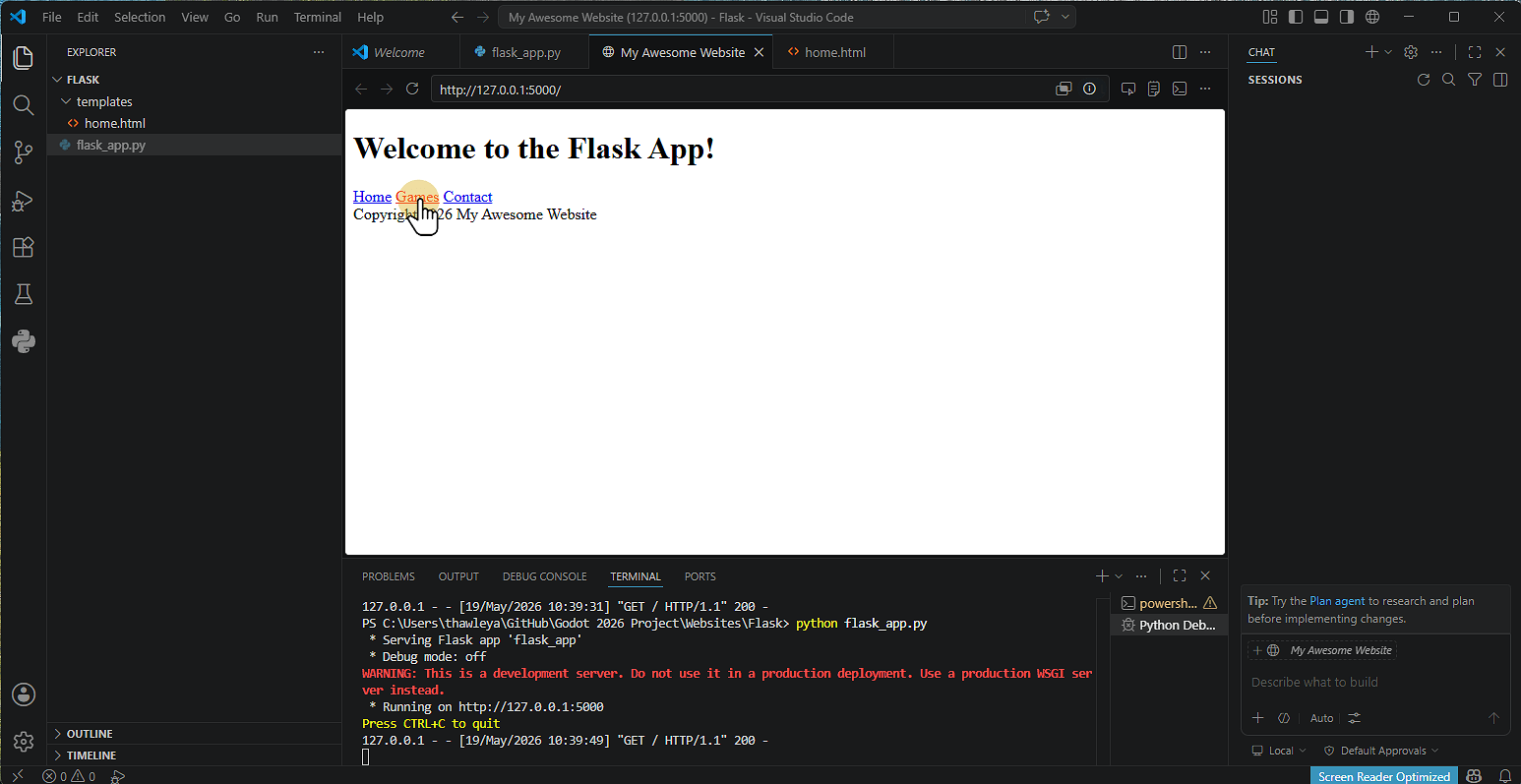
14. Click "Games"
15. Switch back to flask_app.py
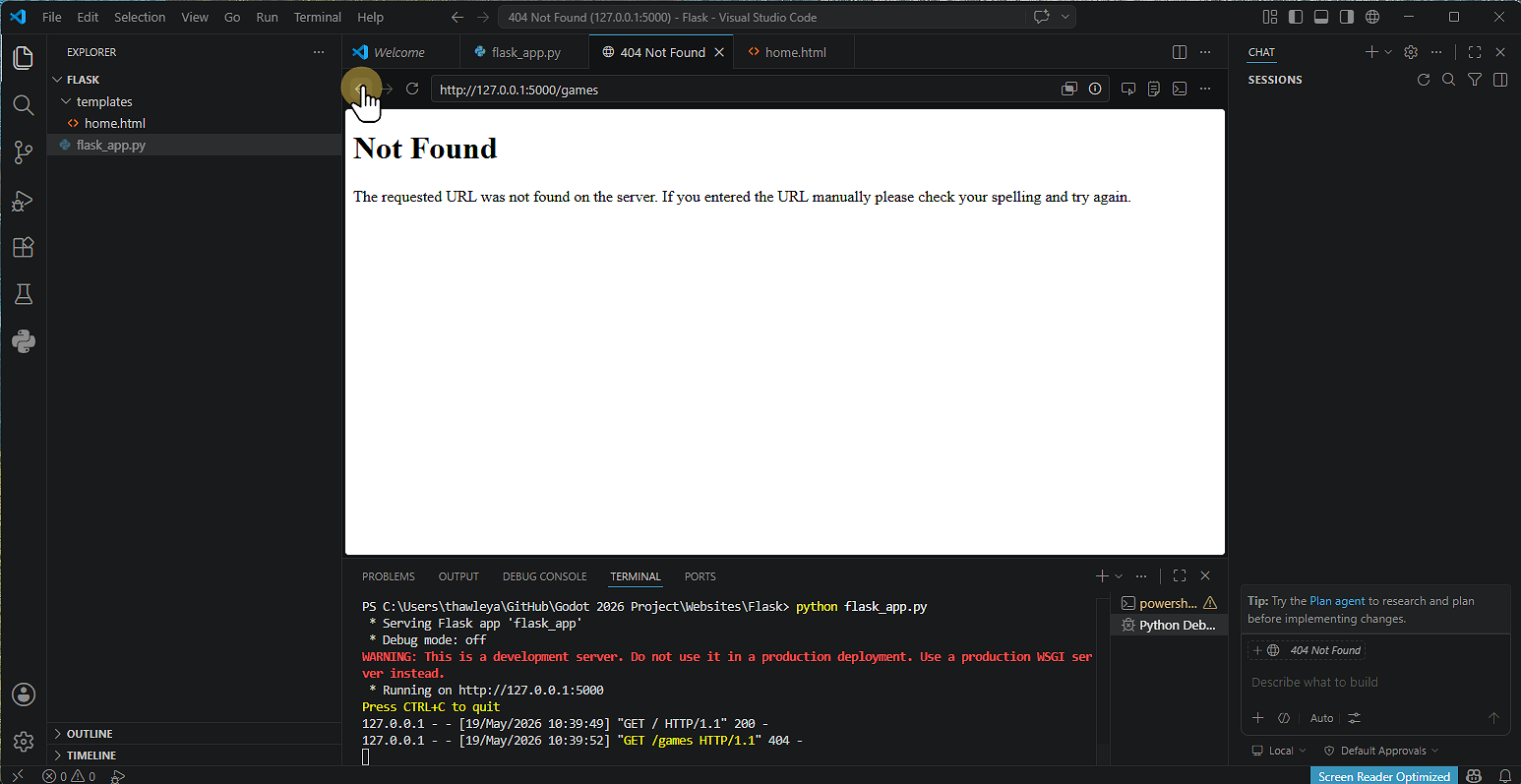
The links to the other pages will not work as we haven’t set these up yet.
16. Add Additional Route
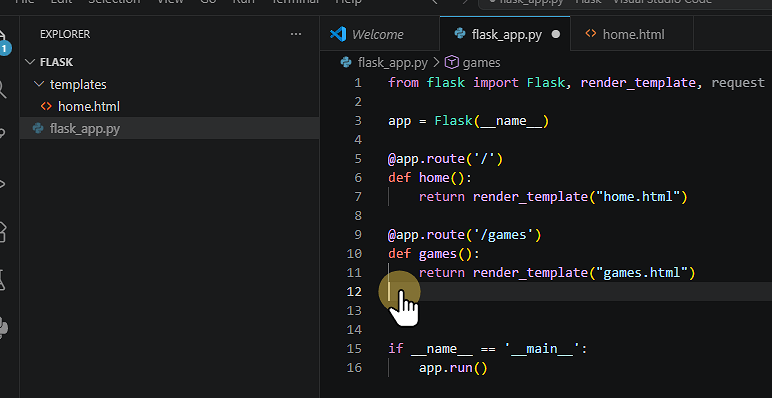
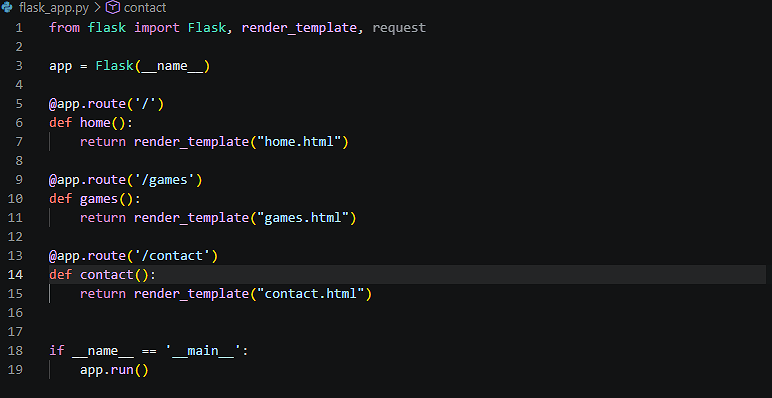
Add a second route for /games as shown.
This is on lines 9-11.
This will add a route so that when /games is entered as a URL it will render the games.html page that is in the templates folder
17. Create games.html
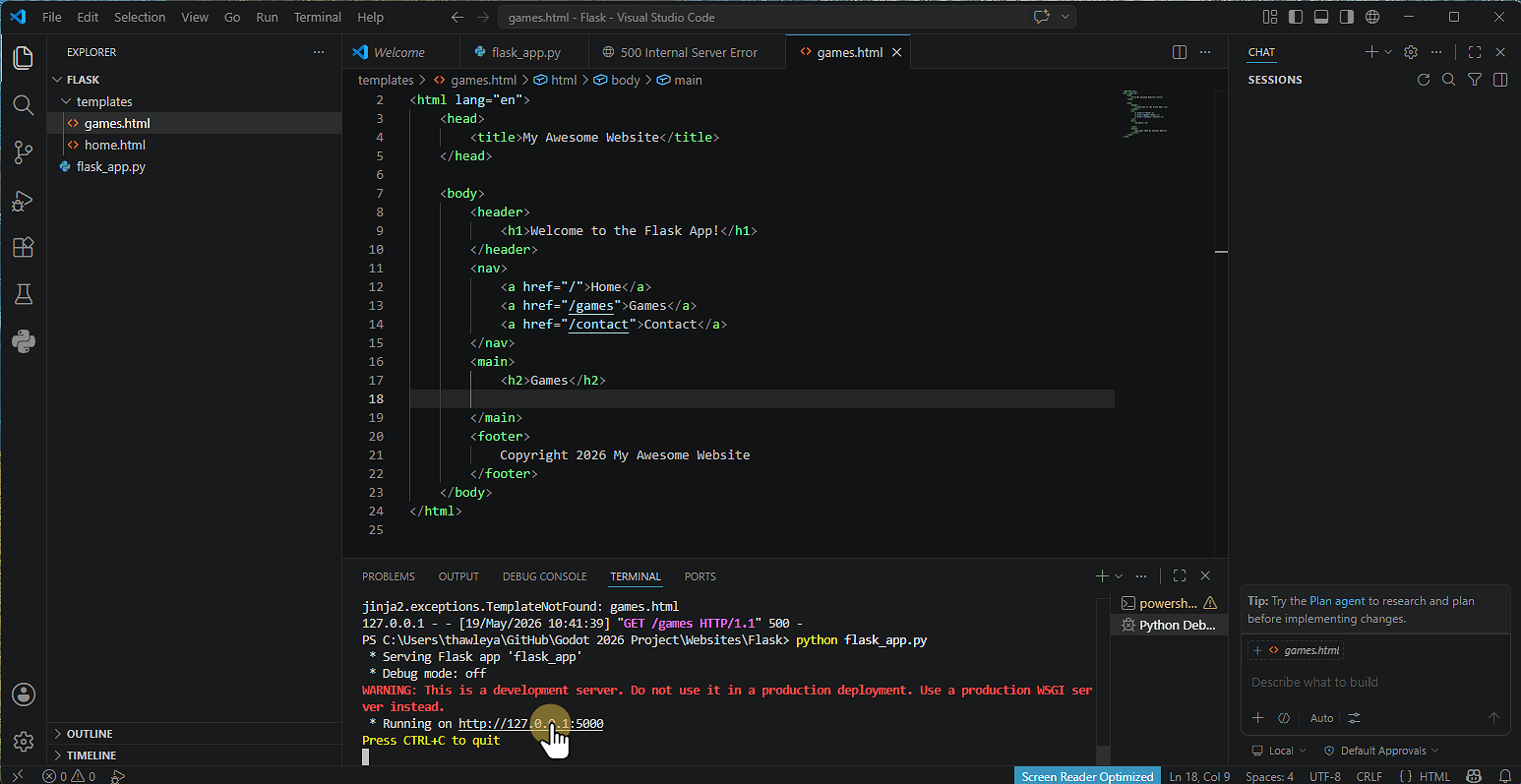
Without games.html we will not be able to load the page.
18. Add other routes
Add in any other routes or pages that you Need.
Remember to make the html pages as well
19. Test and Run the App
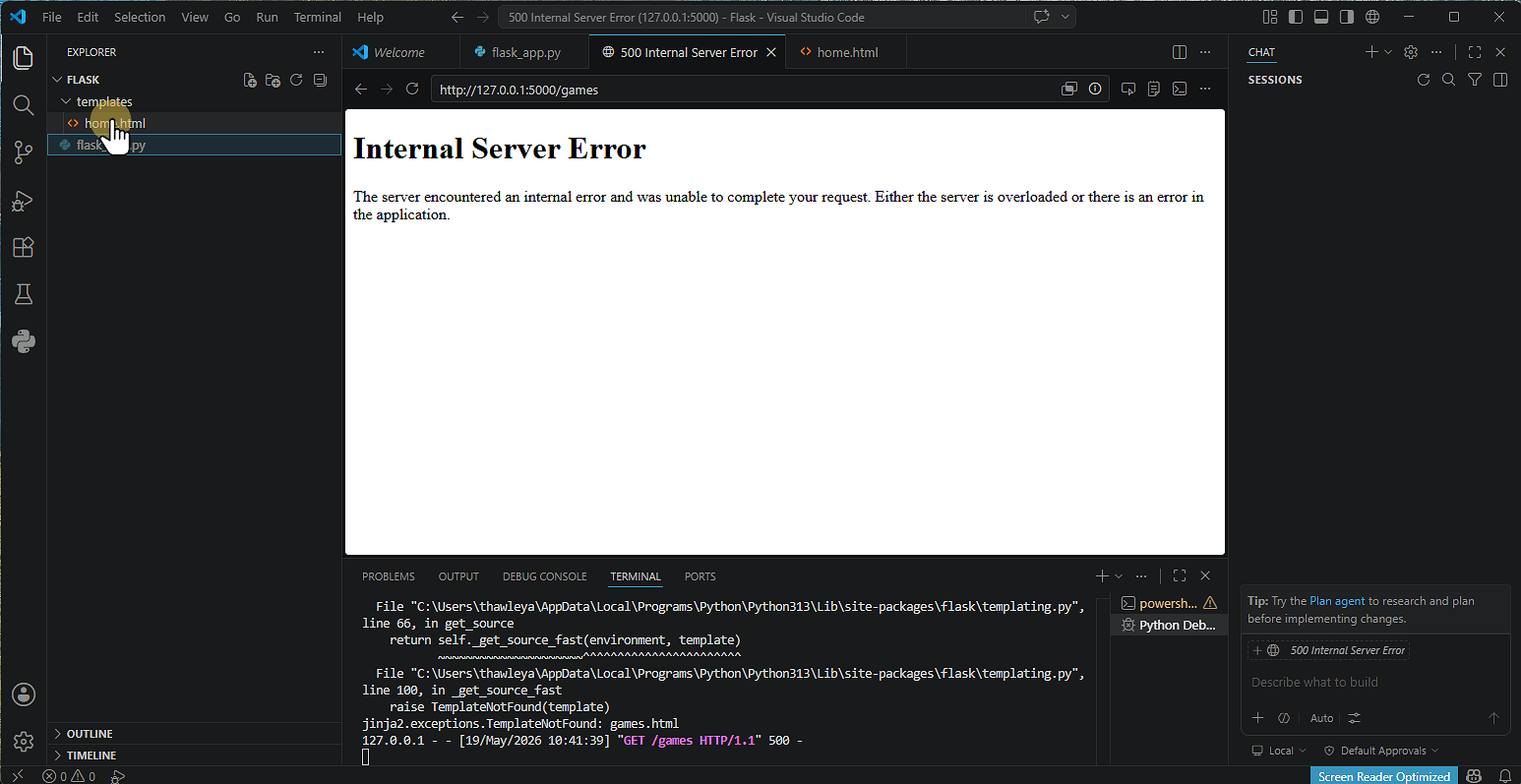
20. Error
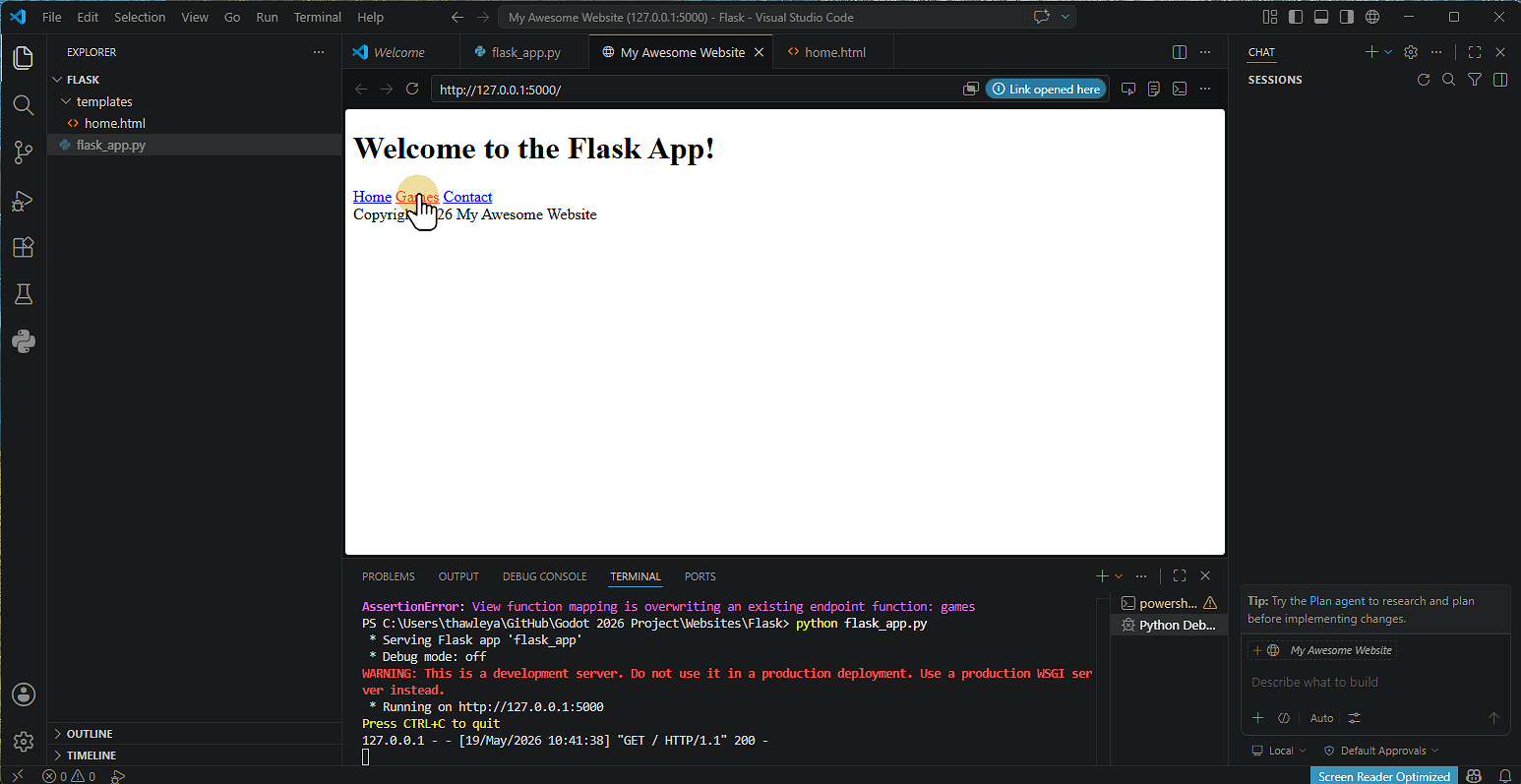
If you see an Internal Server Error this means that the server cannot find the page to load